> ## Documentation Index
> Fetch the complete documentation index at: https://docs.powerux.app/llms.txt
> Use this file to discover all available pages before exploring further.
# Quickstart
> Start building awesome model-driven apps faster than ever.
## Setup your development environment
Learn how to update your docs locally and deploy them to the public.
### Install and Activate
To get started all you need is to download the PowerUX solution into your environment and get a valid license id for the setup.
1. Go to the [PowerUX offering in Microsoft AppSource ](https://appsource.microsoft.com/en-us/product/dynamics-365/amplifyit1681473641329.powerux?tab=Overview)page and click on “Get it now”
2. Choose your environment, agree to the terms of service and privacy statement and click Install
3. Wait until the PowerUX package is installed.
**Result:** You have imported the PowerUX solution.
Now you have access to the PowerUX model-driven application. To activate your subscription follow the below steps:
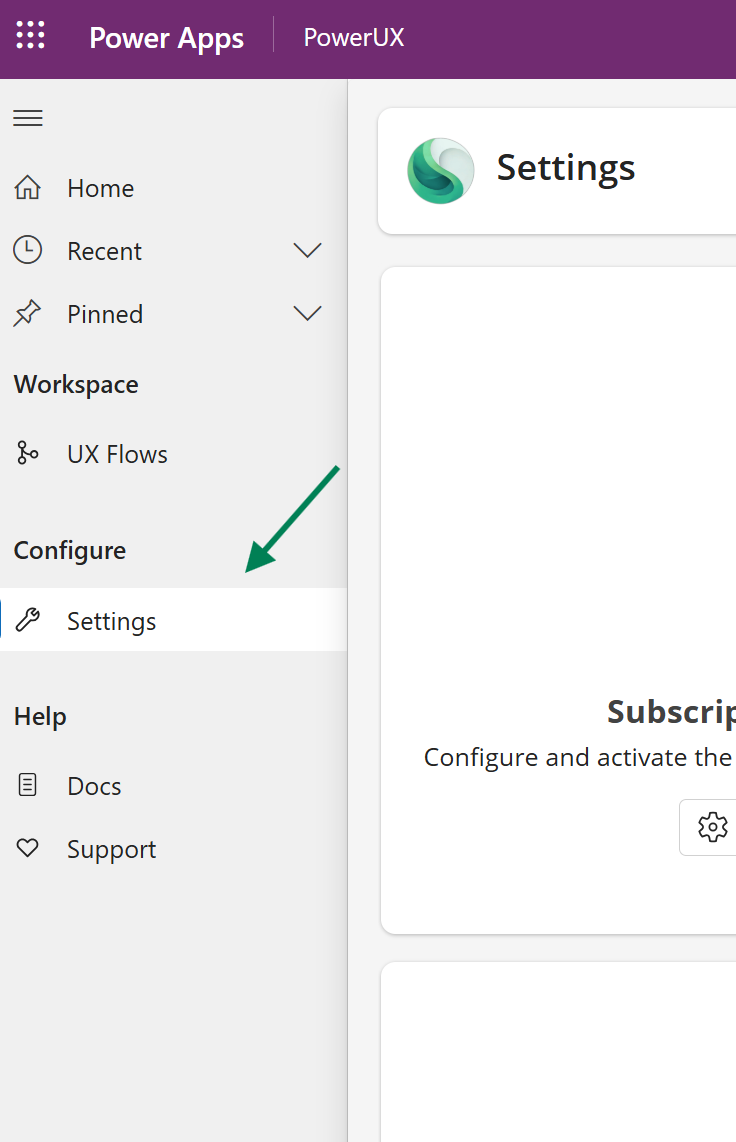
1. Access and open the PowerUX model-driven application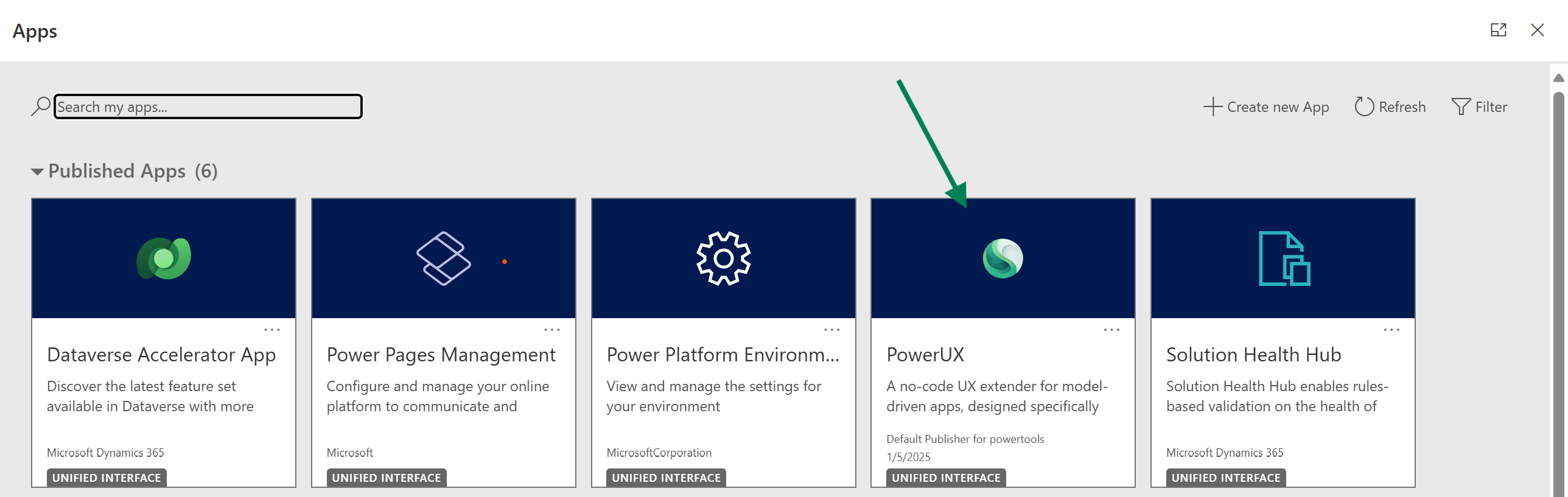 2. From the navigation menu, click on "Settings"
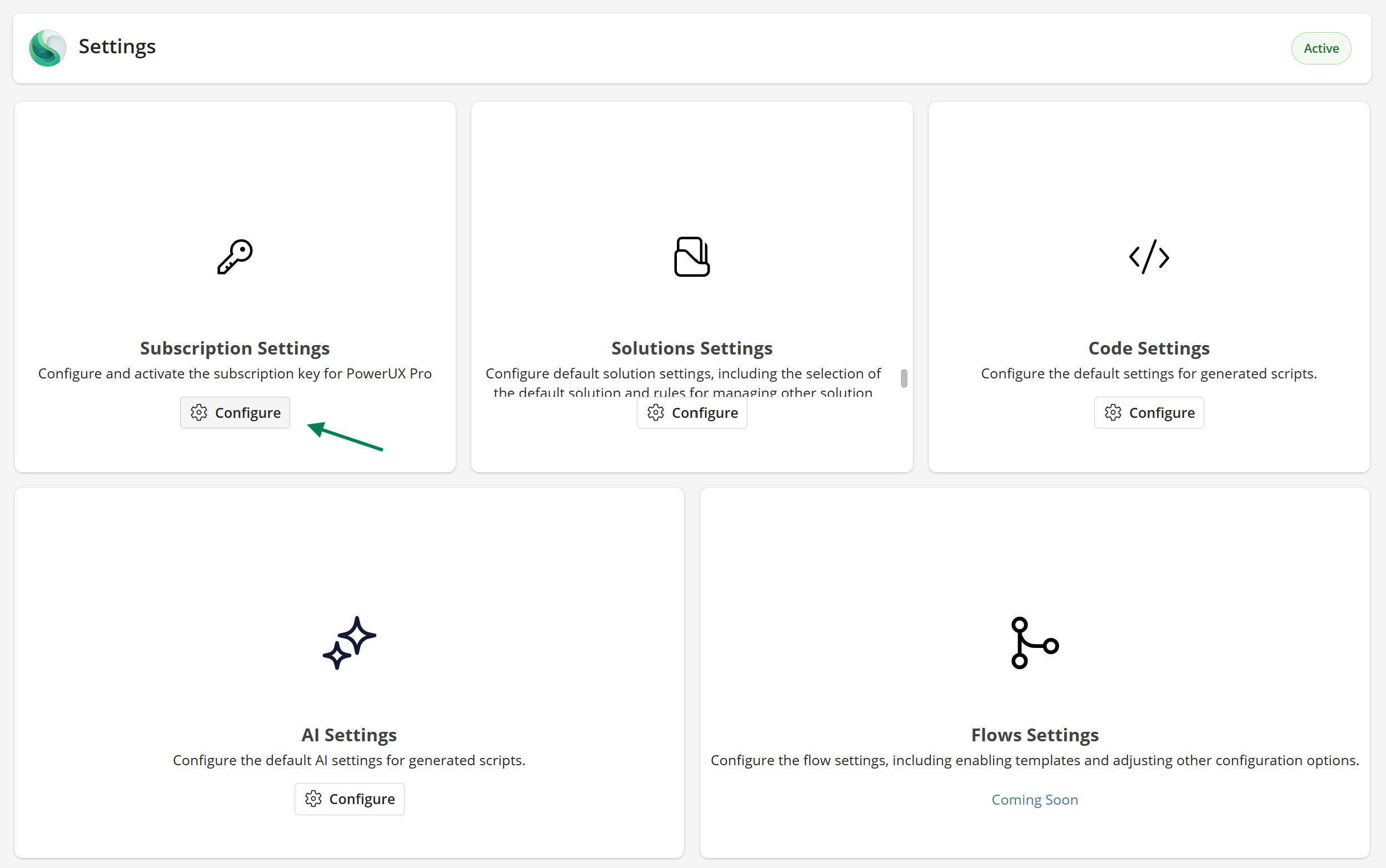
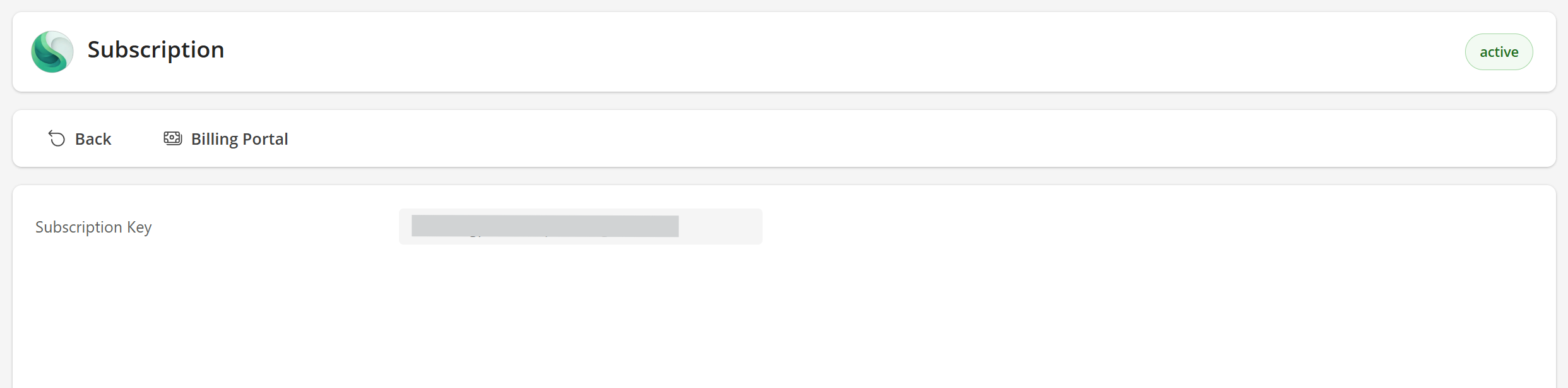
 3. From the "Settings" page, click on manage "Subscription"
 4. Enter your license in the "Subscription Key" field and click on Save
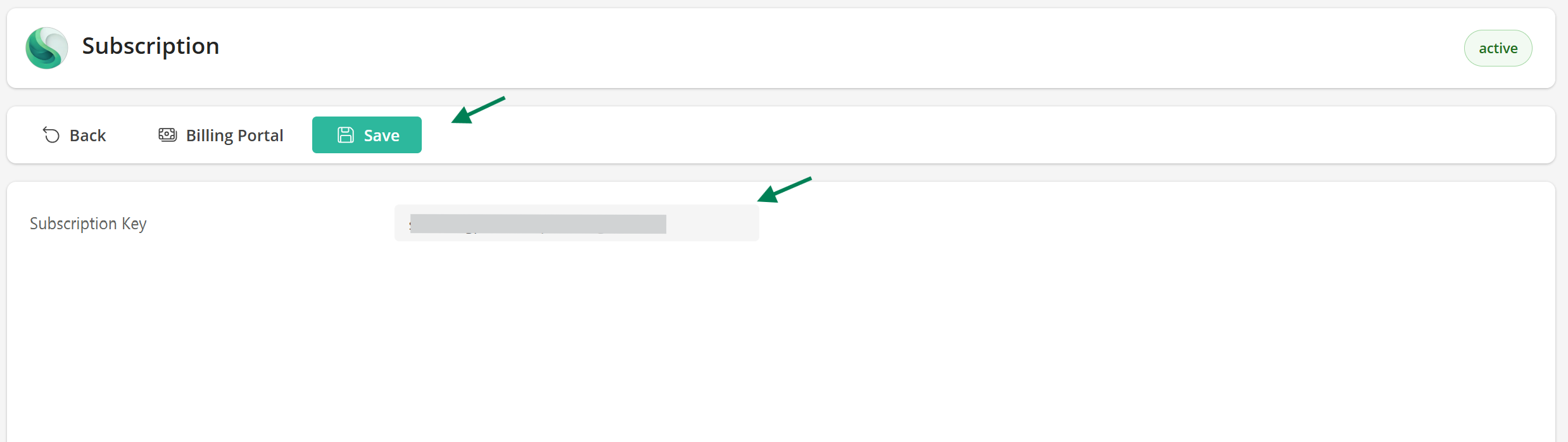 **Result:** Your license is activated, refresh the settings page and observe your license status on the top right
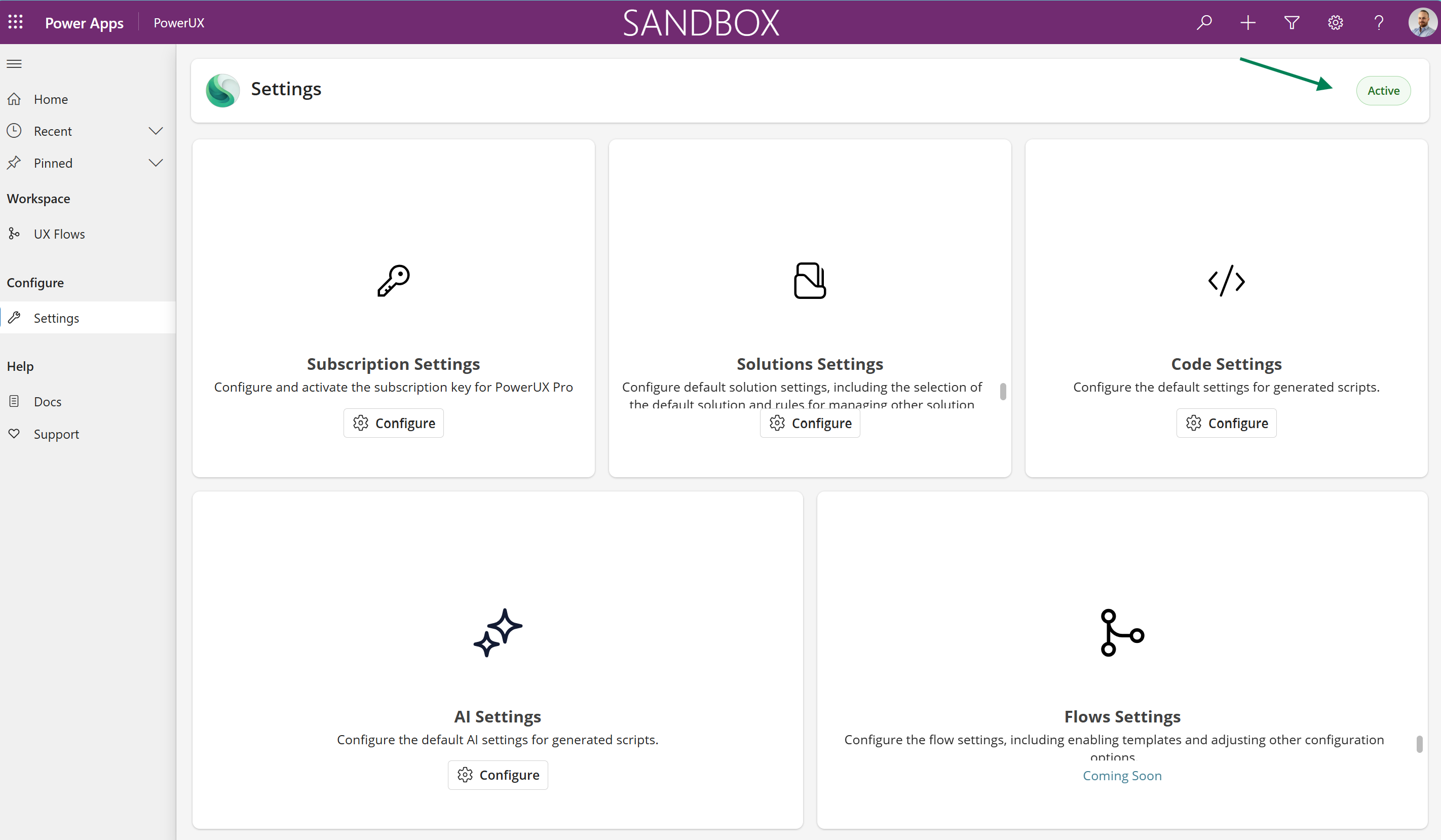 1. From the "Settings" page, click on manage "Subscription"\\
 2. Switch the Enable Backend Services toggle and click save \\
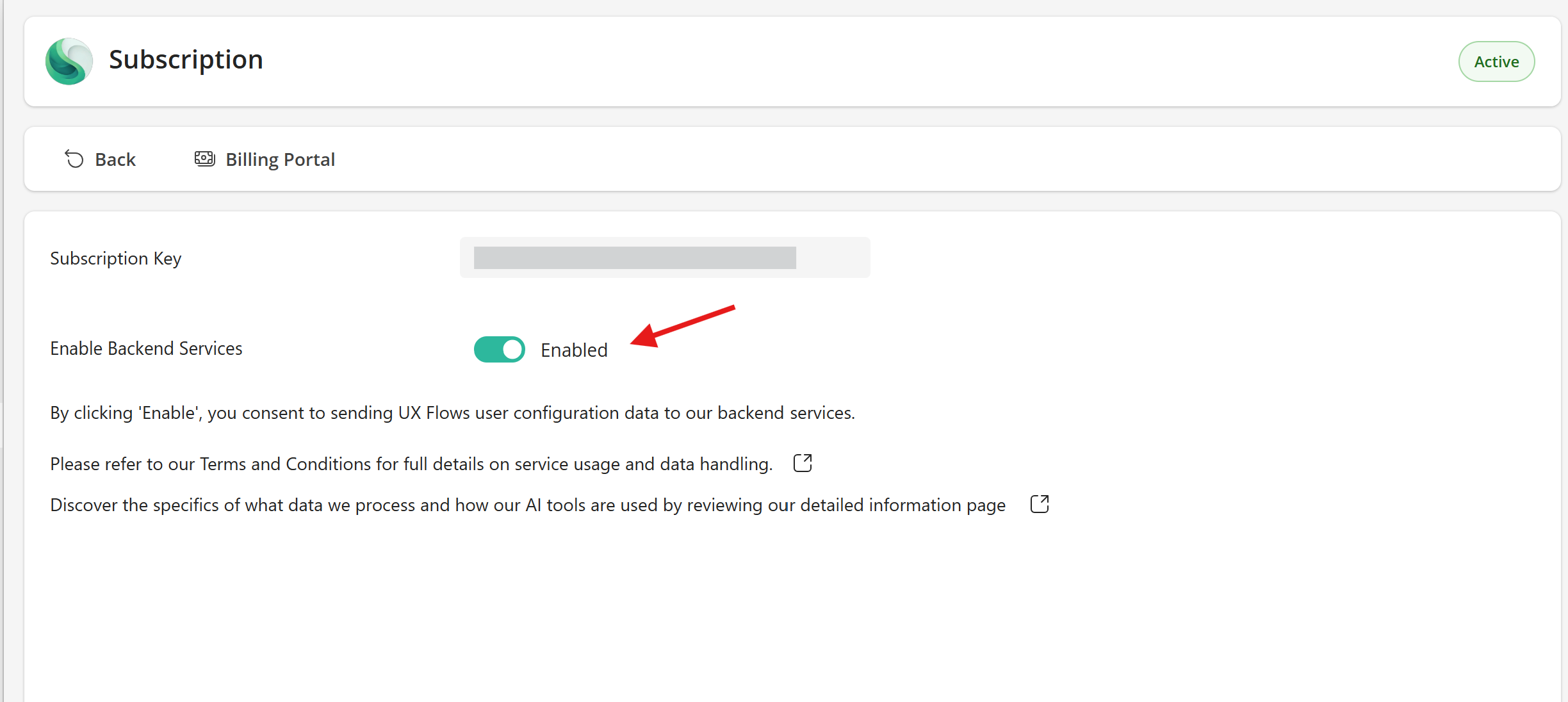 **Result:** Your environment is enabled and you're able to publish UX Flows.
Refer to the [Terms and Conditions](https://powerux.app/terms-and-conditions) to read the full details of our service usage and how handle your data privacy.\
\
Refer to our [Data Processing](https://powerux.app/data-processing) page to learn what data we process and how AI process your configuration.
## Quick Actions
Add complex logic to your model-driven apps in just a few minutes without having to learn JavaScript!
Add a client-side logic with no-code to your model-driven app.
Configure Power UX settings to tailor it to your needs.
List our triggers and steps you can use when creating UX flows.
List our ready to use pre-built pcf controls to elevate the experience of your users!
**Result:** Your environment is enabled and you're able to publish UX Flows.
Refer to the [Terms and Conditions](https://powerux.app/terms-and-conditions) to read the full details of our service usage and how handle your data privacy.\
\
Refer to our [Data Processing](https://powerux.app/data-processing) page to learn what data we process and how AI process your configuration.
## Quick Actions
Add complex logic to your model-driven apps in just a few minutes without having to learn JavaScript!
Add a client-side logic with no-code to your model-driven app.
Configure Power UX settings to tailor it to your needs.
List our triggers and steps you can use when creating UX flows.
List our ready to use pre-built pcf controls to elevate the experience of your users!